

SimBooth Kit 1 – 4K
Got Questions?
Email: support@simulatordirect.com
Phone: (714) 202-9416
Choose options
- Description
- Product Features
- What's Included
- Product Specifications
- Getting Started Guide
- Product Installation Guide
- Brochures
- Videos
- Product Manual and User Guides
- Technical Drawings
- YouTube Reviews
- FAQ's
- Shipping/Returns & Warranty Policy
SimBooth Kit 1 - 4K
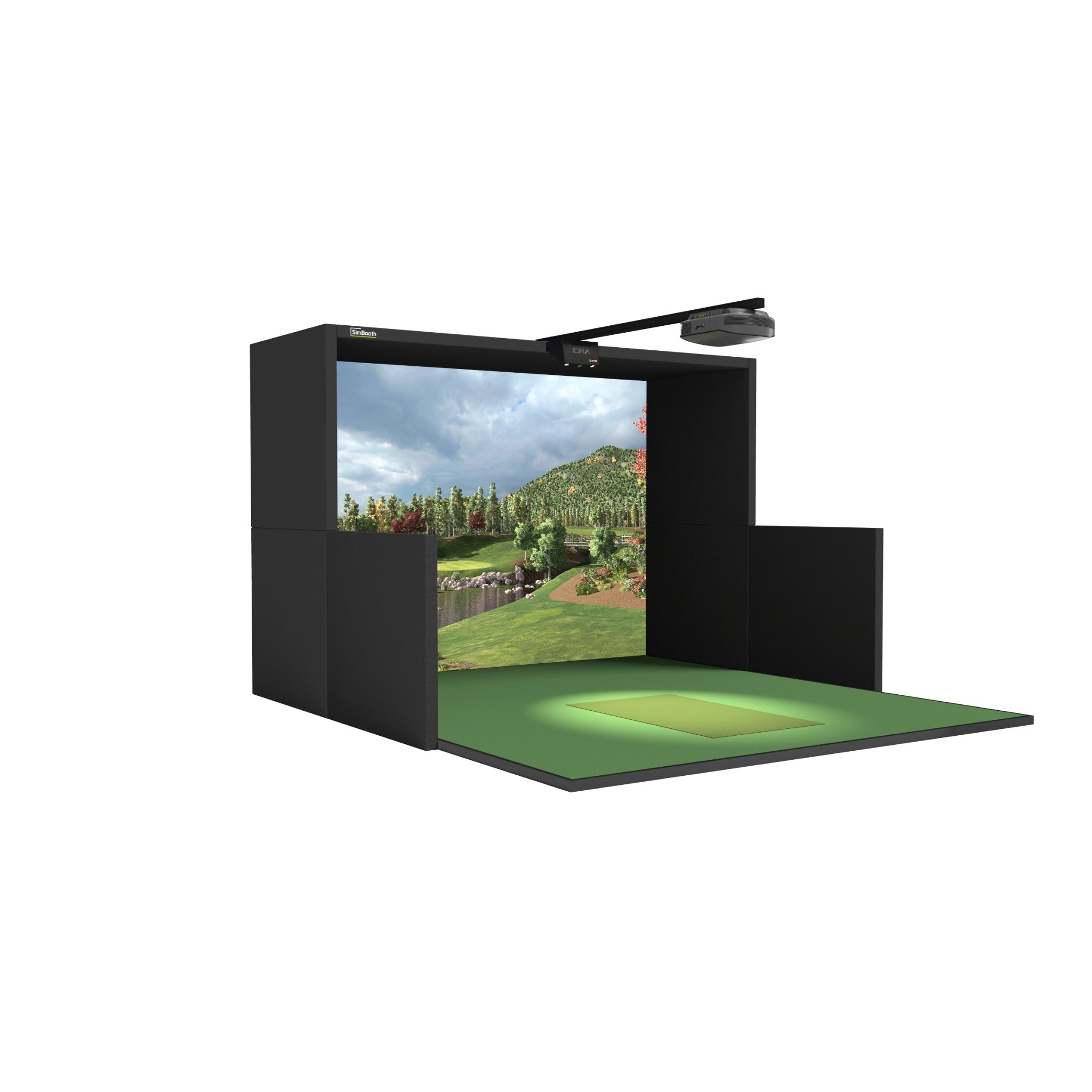
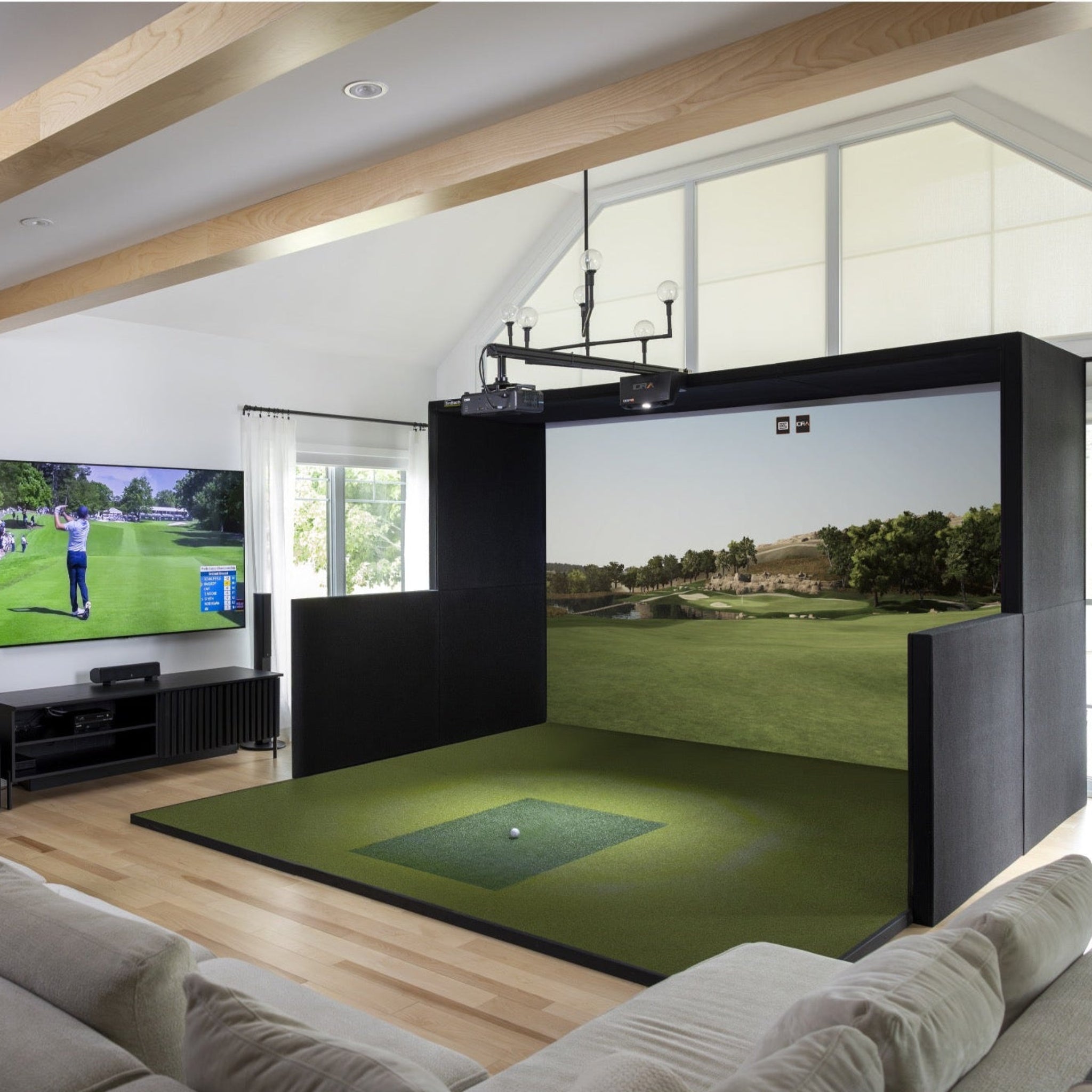
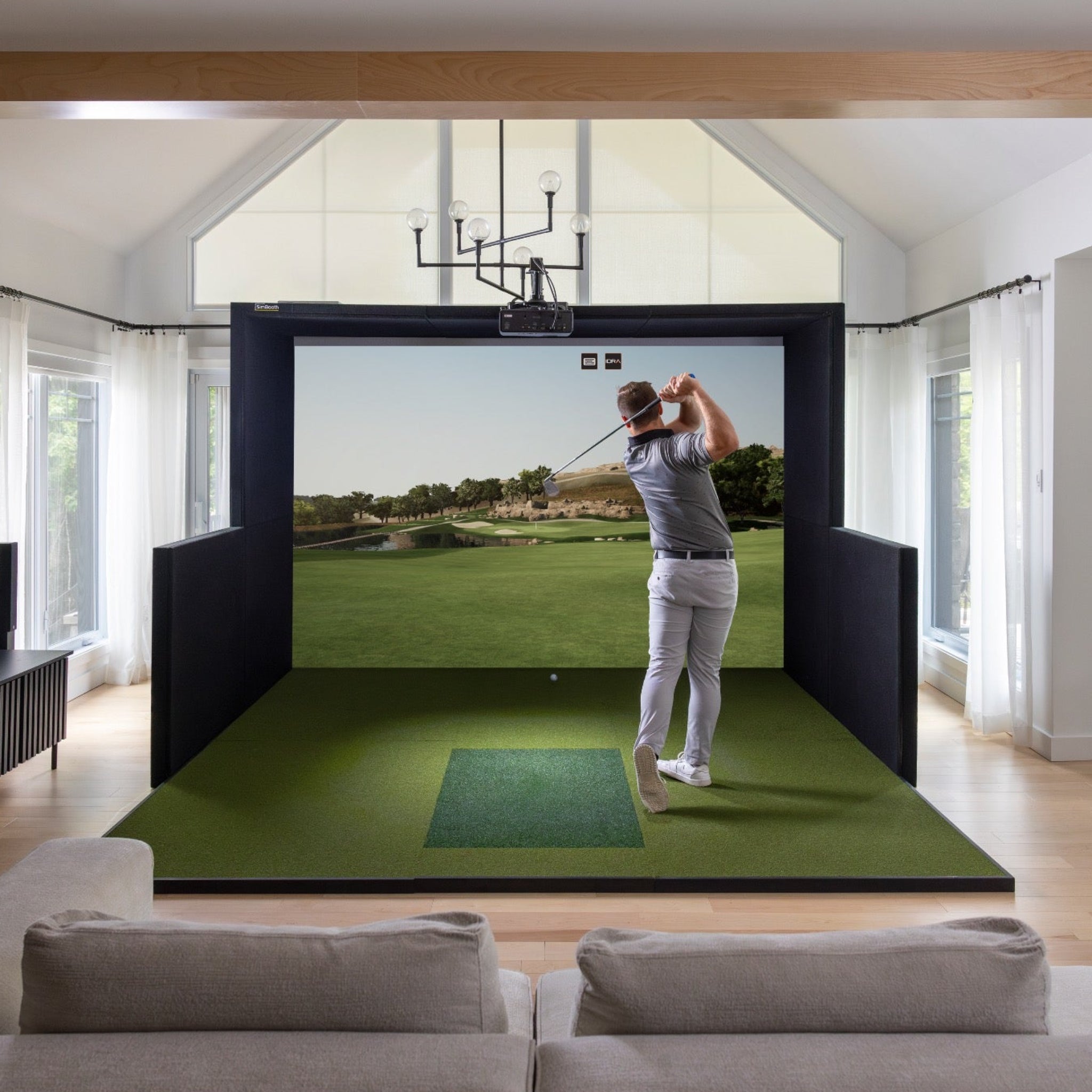
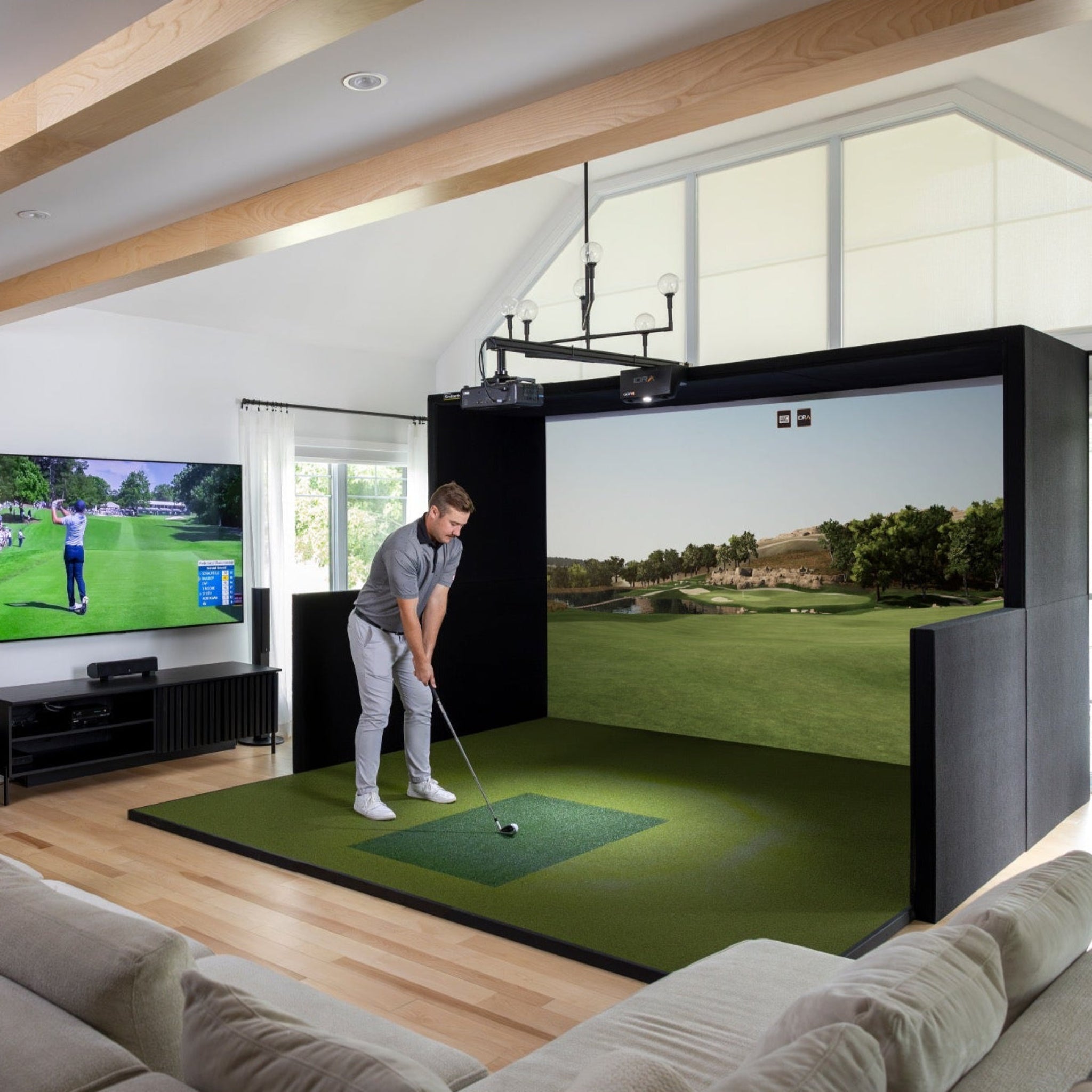
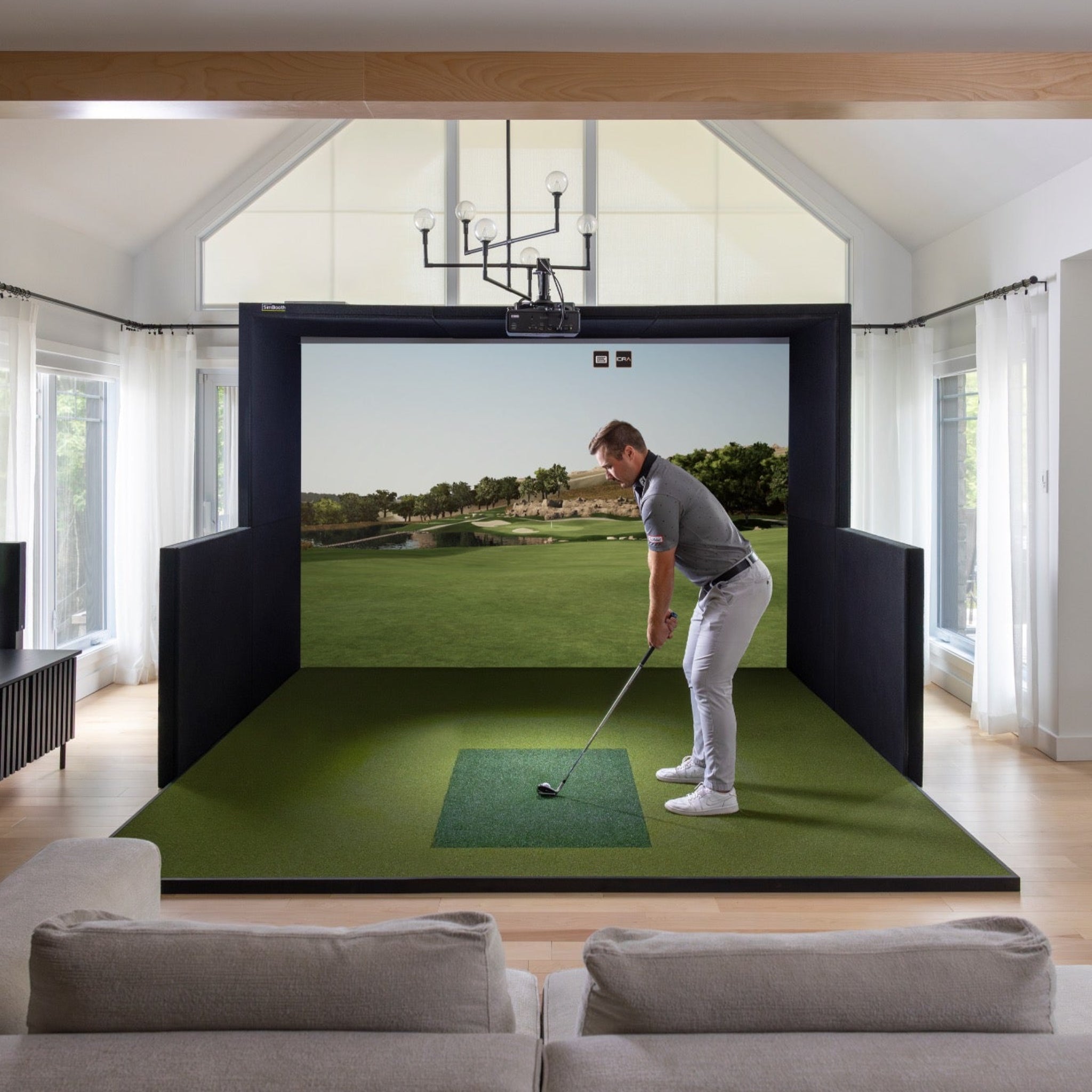
The SimBooth Kit 1 - 4K is a turn-key indoor golf simulator kit designed so you can build a premium enclosure, launch monitor, and projector setup in a single self-install package.
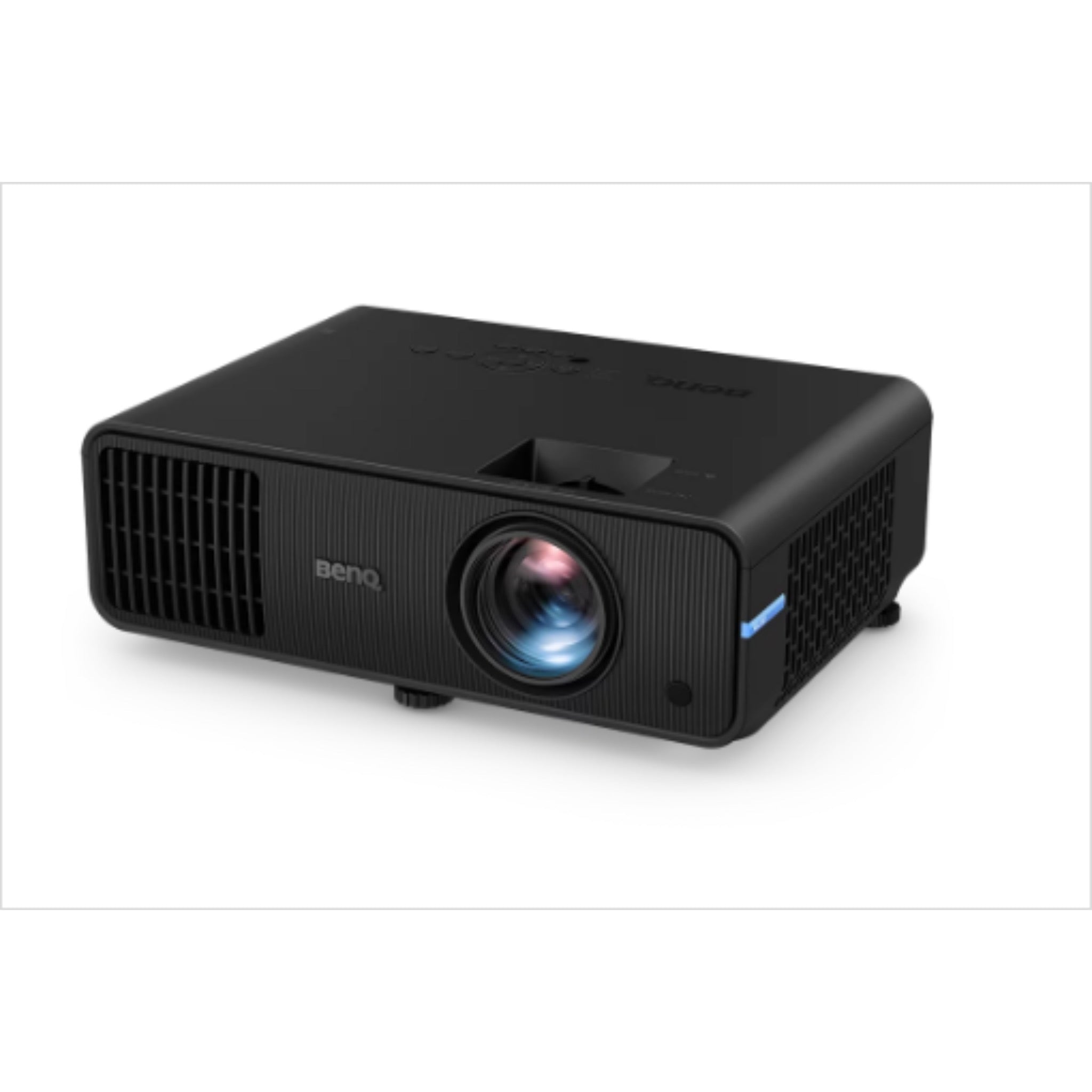
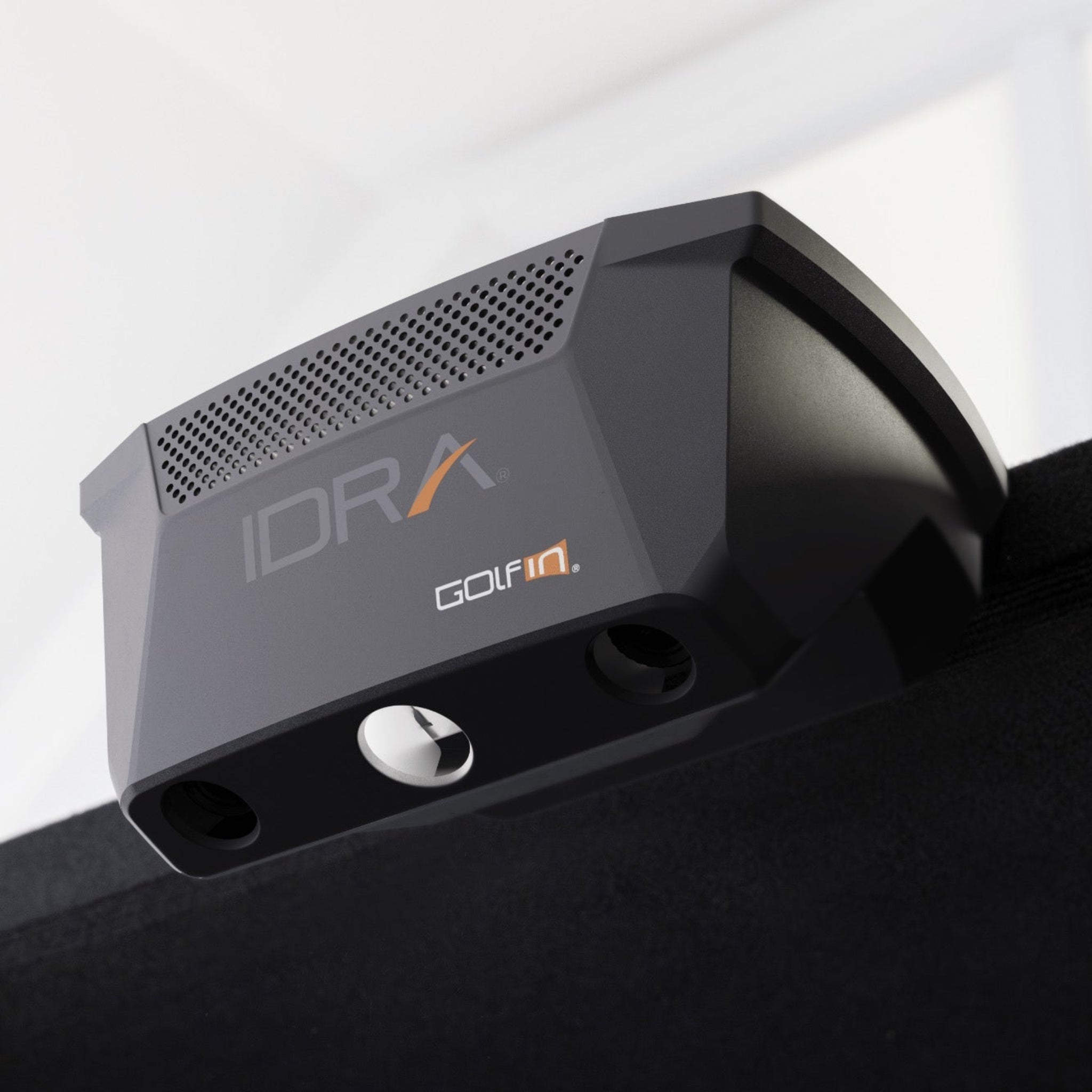
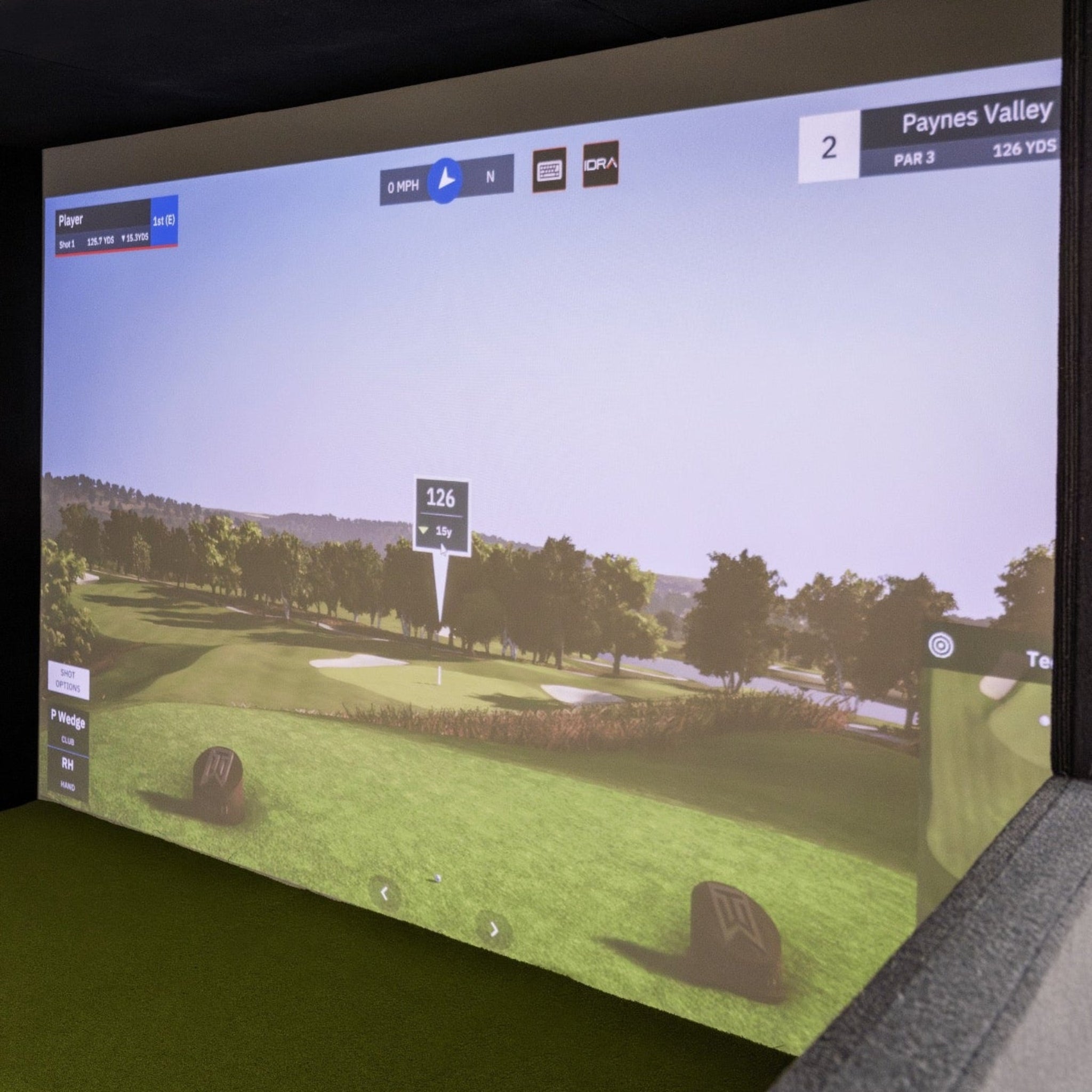
It combines a lightweight aluminum structure, full-surface raised floor, crease-free impact screen, and commercial hitting mat with the IDRA II AI overhead launch monitor, 4K Laser BenQ AK700ST projector, and GSPro golf simulator software with a 1-year membership.
Kit 1 - 4K is sized for typical garages and bonus rooms, with half-walls for protection, low-bounce screen material, and a layout designed to go from delivered pallet to first tee in under a couple of hours for a capable two-person team.

Product Features
| Feature | Details |
|---|---|
| All-in-One Golf Sim Kit | Complete package with enclosure, floor, screen, commercial hitting mat, launch monitor, projector, beam, and software. |
| Self-Installation Design | Panels and floor are engineered for guided self-assembly, with typical installs taking under approximately 2 hours once everything is laid out. |
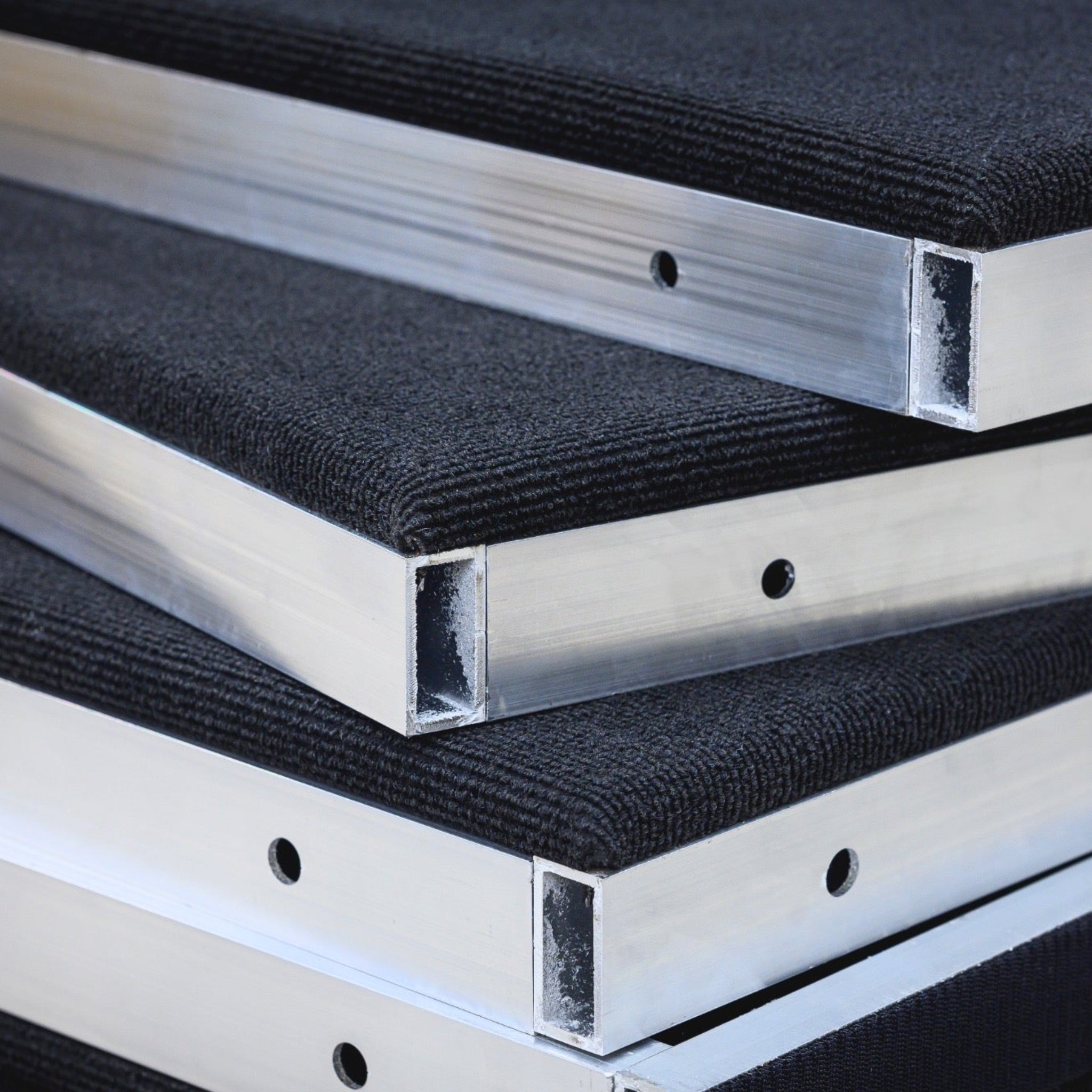
| Solid Aluminum Structure | Main frame is built from 6063-T52 aluminum, giving the enclosure a rigid, durable, and clean-looking structure. |
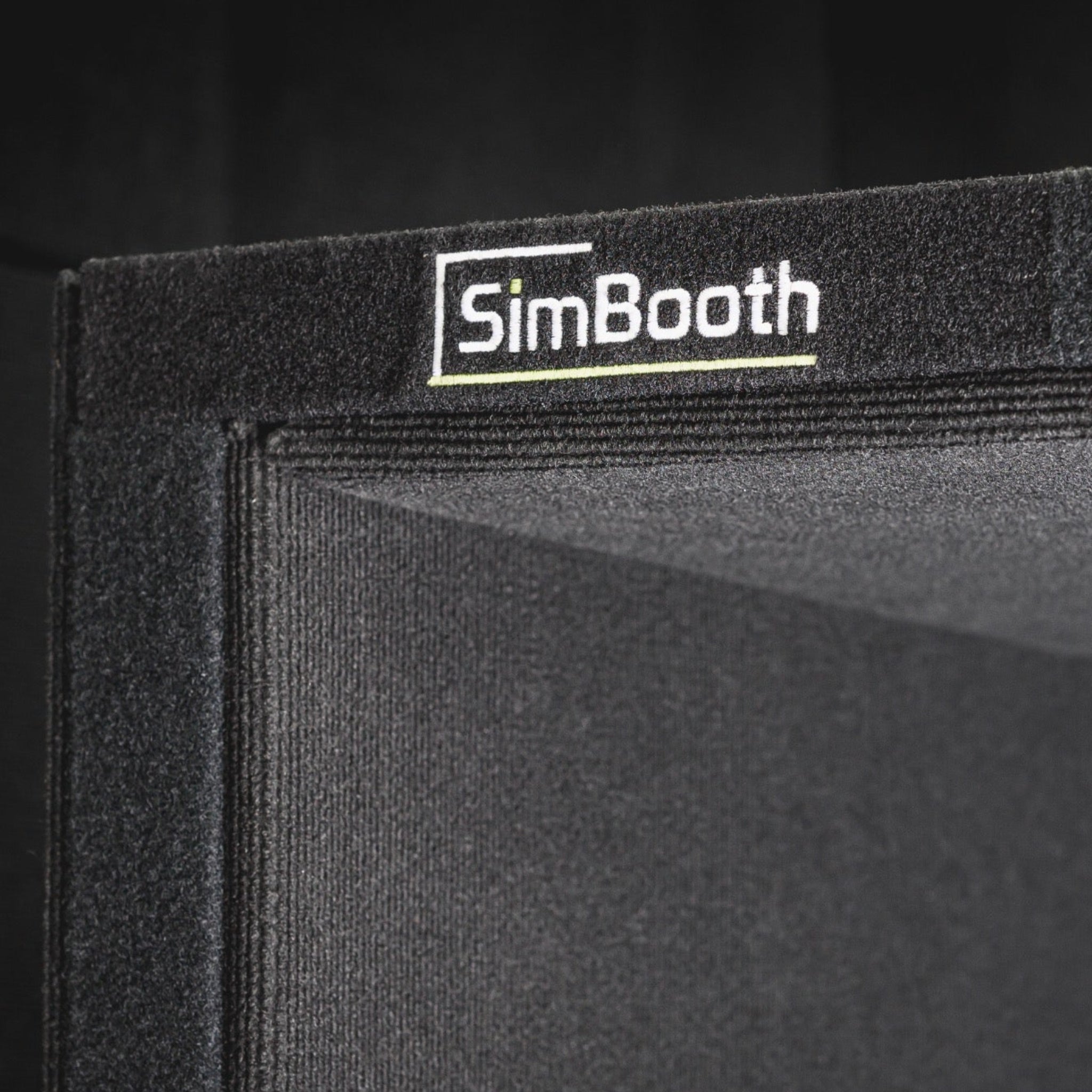
| Solid Side Panels & Half-Walls | Black side panels and half-walls help contain errant shots while visually framing the hitting area. |
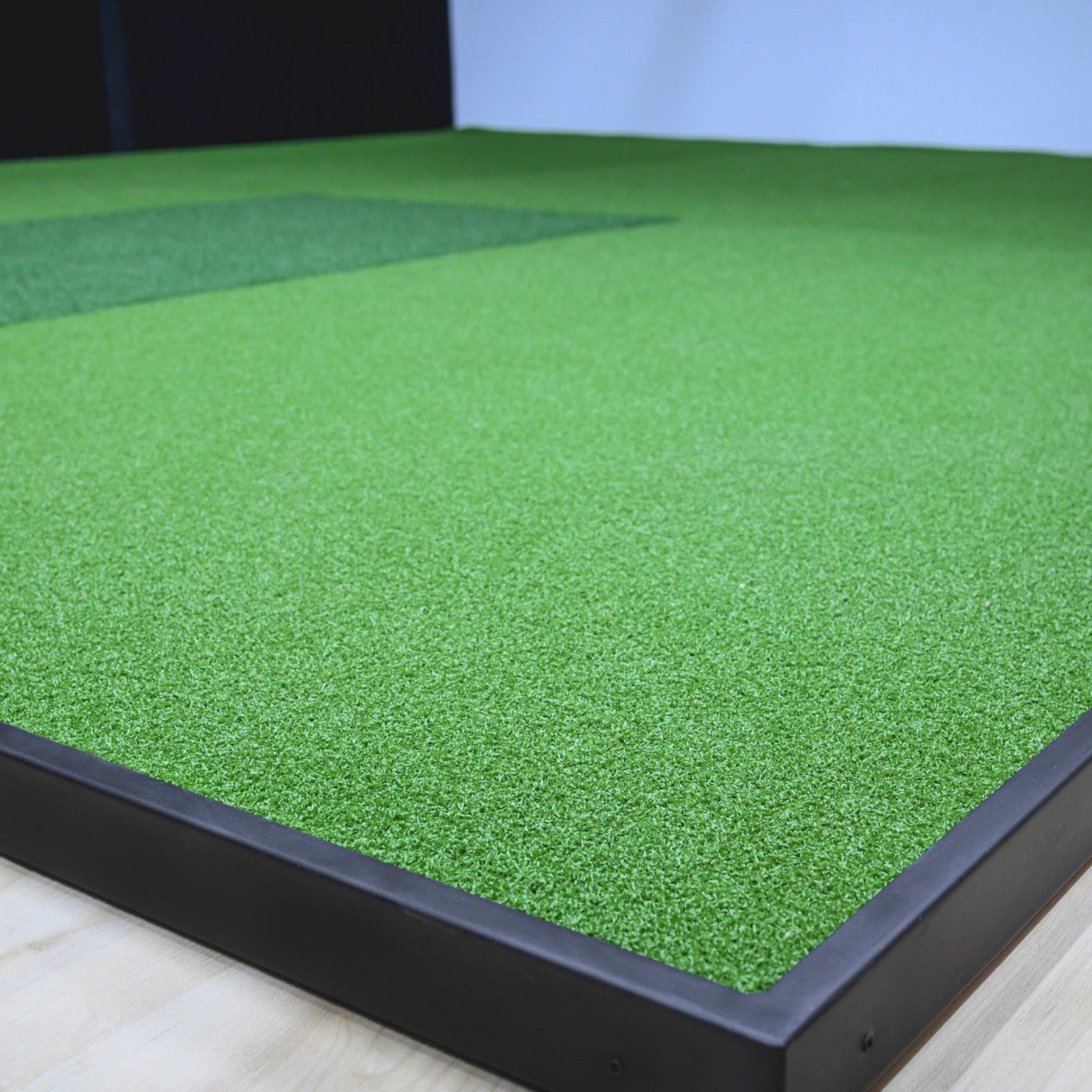
| Full-Surface Raised Floor | Integrated floor sections bring the hitting mat flush with the screen border for consistent stance and ball height from driver through putter. |
| Crease-Free, Low-Bounce Screen | Screen is stretched top-to-bottom and side-to-side to help reduce wrinkles and minimize bounce-back on full shots. |
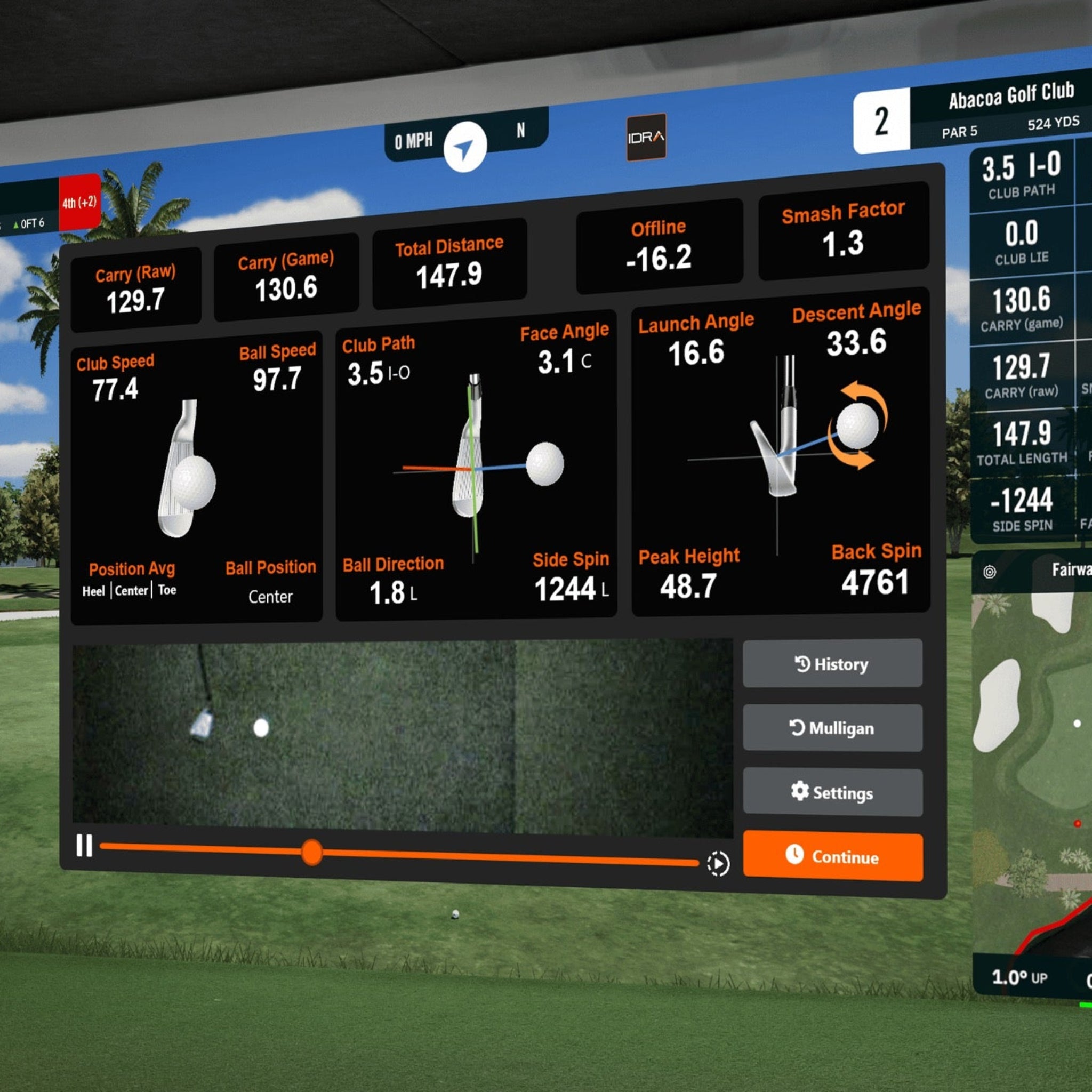
| IDRA II AI Launch Monitor | Overhead unit with dual high-speed cameras, integrated light, large 32” × 18” hitting zone, and support for full club and ball data. |
| GSPro Software Included | Includes a 1-year GSPro membership with realistic ball physics, a large course library, and special IDRA II integration with shot analyzer and video replay. |
| 4K Laser Projector + Beam | Includes 4K Laser BenQ AK700ST projector plus mounting beam for customers who prefer not to mount directly to the ceiling. |
| Flexible Projector Placement | Short-throw lens, keystone, and corner-fit adjustments make it easier to fill the screen, even in tighter rooms. |
| Commercial Hitting Mat | Durable hitting mat sized approximately 32” × 54” × 2” for repeated use. |
| Simple Delivery | Ships in a roughly 6’ × 4’ × 4’ crate, ready to be unpacked and carried into the final room. |
What's Included
-
SimBooth Kit 1 - 4K enclosure structure
- Includes aluminum frame, solid black panels, and half-walls.

-
Full-surface floor system
- Includes modular floor panels and integrated hitting mat cut-out.

-
Commercial hitting mat
- Approximately 32" x 54" x 2".

-
Impact screen
- Crease-free, low bounce-back screen design.

-
IDRA II AI overhead launch monitor
- Includes integrated light and required cabling.

- 4K Laser BenQ AK700ST projector

-
Projector beam / mount
- Designed for structure-mounted projector installation.

-
GSPro golf simulator software – 1-Year Membership
- Auto-renews after year 1 unless cancelled.

-
Required cabling
- Includes HDMI, USB, and power cables.
-
Basic hardware and tools for assembly
- Includes bolts, nuts, washers, wing nuts, and Allen keys.
Product Specifications
Enclosure & Space Requirements
| Item | SimBooth Kit 1 / Kit 1-4K |
|---|---|
| Structure Dimensions | 11’1” W × 12’ D × 7’10” H |
| Screen Size | Approximately 153” diagonal, 126” × 86”, at 16:10 ratio |
| Minimum Room Space | 13’ W × 16’ D × 9’ H |
| Ideal Room Space | 15’ W × 22’ D × 10’ H for extra swing clearance and projector placement margin |
| Main Structure Material | Aluminum 6063-T52 with solid wood / board panels |
| Hitting Mat | 32" x 54" x 2" |
| Floor | Full-coverage modular floor integrated into enclosure |
IDRA II Launch Monitor Key Specs
| Category | Details |
|---|---|
| Mounting Style | Overhead, attaches directly to enclosure ceiling |
| Technology | AI-powered dual high-speed cameras with non-marked ball and club tracking |
| Hitting Zone | Approximately 32” W × 18” D hitting area under the unit |
| Club Data | Club speed, path, face-to-path, face-to-target, smash factor, face vs. impact, and related club metrics |
| Ball Data | Ball speed, launch angle, spin axis, side spin, backspin, peak height, descent angle, carry, total distance, deviation, and direction |
| Software Compatibility | GSPro with enhanced integration and E6 Connect |
Projector & PC Requirements Summary
| Component | Key Details |
|---|---|
| Projector | 4K Laser BenQ AK700ST projector optimized for golf simulators |
| Typical Projector Distance | For Kit 1 - 4K, projector lens distance may vary depending on final mounting height, image size, and screen fill. Confirm placement during setup before permanently securing the projector. |
| PC Minimum for GSPro | Intel i7 10th-gen, 16 logical processors, 16 GB RAM, 512 GB storage, RTX 20 series GPU, 2× USB 3.0 + 1× USB-C, and high-speed internet |
| PC Recommended for GSPro | Intel i7 10th-gen or newer, 24 logical processors, 32 GB RAM, 1 TB storage, RTX 40 series GPU, same USB and internet requirements |
| PC Note | AMD CPUs and GPUs are not supported by SimBooth’s recommended configurations. |
Getting Started Guide
-
Confirm room size and clearance
- Measure your space against the minimum room requirements and make sure you have swing clearance for your longest club.
-
Unpack the crate
- Carefully open the 6’ × 4’ × 4’ crate and sort components into groups: structure panels, floor pieces, screen/net, electronics, and hardware.
-
Lay out floor and panels
- Place floor panels and wall sections near their final positions to visualize orientation before you start bolting pieces together.
-
Assemble the enclosure frame
- Build the ceiling sections, then connect top and bottom wall panels and install half-walls as shown in the guide.
-
Install screen, net, and floor
- Stretch the white screen and black impact layer using the integrated Velcro, then install floor panels and hitting mat so everything is flush with the screen.
-
Mount IDRA II and projector
- Attach IDRA II to the pre-drilled holes at the front center of the ceiling and install the projector beam or ceiling mount, then mount the projector.
-
Connect power, USB, and HDMI
- Follow the cable diagrams: power and remote switch, USB 3.0 / USB-C from IDRA II to the PC, HDMI from PC to projector, and optional USB hub.
-
Install GSPro and GolfIn launcher
- On your PC, install the GolfIn launcher, GSPro, and any required IDRA II drivers; log in with your subscription account.
-
Calibrate IDRA II
- Follow the SimBooth step-by-step calibration instructions using the calibration board to set hitting zone, alignment, and club / ball tracking.
-
Launch your first round
- Select a course in GSPro, check that shot data appears correctly, and fine-tune projector image and brightness to your liking.
Product Installation Guide
-
Safety and helpers
- Plan for 4 people, two ladders, and basic tools. Heavy components such as ceiling panels, projector, and IDRA II should be lifted by at least two adults.
-
Assemble the ceiling
- On the floor, bolt the left, center, and right ceiling panels together using the supplied bolts, washers, and nuts.
-
Attach upper wall panels
- Fix the left and right top wall panels to the ceiling section.
-
Attach lower wall panels
- Remove the lower wall fabric covers with Velcro, bolt the bottom wall panels to the top panels, then re-attach the covers.
-
Install scissor bar / roof brace
- Unfold the scissor bar, lock it with safety pins, and attach it to each side and the center of the ceiling using bolts and wing nuts. This stiffens the structure before lifting.
-
Raise the structure
- With four people, lift the entire wall / ceiling assembly upright into its final position.
-
Install screen and impact layer
- Use the Velcro to hang the white screen first, then the black impact net. Make sure the net does not rest on the floor to help keep bounces predictable.
-
Install floor and hitting mat
- Drop floor sections in the labeled order. Pull the screen under the front bar and attach to Velcro, then install the hitting mat so it sits level with the floor and screen edge.
-
Install half-walls
- Cut small openings in the carpet where pre-drilled holes are located, insert half-walls, and bolt them to the frame. Re-attach removable lower wall panels with Velcro.
-
Mount IDRA II and elevating bracket
- Bolt the IDRA II mount through the pre-drilled holes in the center front ceiling panel using the provided hardware, then attach the IDRA II unit to the bracket.
-
Install projector beam and projector
- Bolt the projector beam to the roof. Optionally use the projector enclosure, then follow BenQ’s instructions to secure the projector and align it to the screen.
-
Route and cover cables
- Connect power, HDMI, and USB cables and secure them using the supplied wire cover and Velcro straps to keep cables tidy and protected.
-
Finalize projector and PC settings
- Use NVIDIA Control Panel and Windows display settings to set the recommended resolution, adjust aspect ratio, then dial in zoom, keystone, corner fit, and focus.
Brochures
Videos
Product Manual and User Guides
Technical Drawings
YouTube Reviews
Frequently Asked Questions
Shipping Policy
Simulator Direct processes and ships SimBooth orders using trusted freight and parcel carriers to help ensure reliable delivery and product protection.
Most SimBooth products are large, made-to-order golf simulator booths that ship directly from Sim Sports Corporation / SimBooth in Saint-Georges, Québec, Canada.
Shipping Methods & Charges
- SimBooth products typically ship via freight carriers due to their size and weight.
- Smaller accessory items may ship via standard parcel services where applicable.
- Shipping costs are calculated based on destination, order size, and shipping method.
- Shipping charges are displayed in your cart and at checkout before you place your order.
- These are the amounts that will be charged for shipping for SimBooth products.
- Free shipping is not guaranteed for SimBooth products.
- Free shipping only applies when it is clearly stated on the product page and/or at checkout.
- Unless “Free Shipping” is clearly shown for your order, standard shipping charges apply.
- International shipments, including shipments from Canada to the United States, may be subject to additional duties, taxes, or brokerage fees.
- These charges are set by local authorities and, when applicable, are the responsibility of the recipient.
Lead Time & Processing
- SimBooth enclosures and kits are manufactured and shipped to order.
- Lead times may vary based on configuration, production schedule, and carrier availability.
- Estimated lead times or ship windows will be shown on the product page or communicated on your order confirmation whenever possible.
- All timeframes are estimates only and may vary due to production workload, carrier routing, customs clearance, weather, or seasonal volume.
- Tracking details will be provided by email once your order has shipped so you can monitor its progress.
Freight Deliveries & Special Services
- SimBooth enclosures and golf simulator booths are typically shipped on pallets via freight carriers.
- Freight deliveries are usually made curbside at a residential address or to a commercial loading dock.
- If you require special services, please contact support@simulatordirect.com before placing your order.
- Examples may include lift-gate service, inside delivery, or scheduled delivery appointment where available.
- We can provide a quote and help set expectations before your order is placed.
- Because SimBooth ships from Canada, freight transit times may include customs processing.
- Any additional paperwork required by the carrier or customs broker must be completed promptly by the customer to avoid delays.
Return Policy
We want you to be satisfied with your SimBooth purchase. Because SimBooth products are large, made-to-order golf simulator enclosures, returns and exchanges follow SimBooth’s reseller drop-shipping return policy and are subject to specific conditions.
Return Eligibility
- Returns must be requested within 30 days of the original purchase date.
- Returns requested after 30 days are not eligible for refund or exchange.
- Items must be unused, in the same condition as received, and in their original packaging.
- All parts, panels, hardware, and accessories must be included.
- All SimBooth returns require written authorization from Simulator Direct before the product is shipped back.
- Unauthorized returns may be refused or returned to the sender.
- Partial kit returns are not accepted.
- The full kit or booth must be returned together unless otherwise authorized in writing.
- High-value orders are processed shortly after purchase.
- Cancellation requests must be submitted promptly to help avoid processing fees.
Return Shipping & Restocking
- For non-defective SimBooth returns, the customer is responsible for all return shipping costs.
- Original shipping charges are non-refundable.
- Once the returned item is received and inspected by SimBooth, an approved refund will be issued to the original payment method, generally within 15 days.
- SimBooth deducts a combined shipping and handling fee equal to 15% of the original cost from the refund.
- This 15% deduction is part of SimBooth’s reseller return policy and will be passed through on qualifying returns.
- Additional carrier fees may also be deducted from the refund when applicable.
- This may include refused delivery fees, missed delivery appointment fees, storage fees, or similar carrier charges.
- We strongly recommend using a trackable and insured shipping service for any authorized SimBooth return.
- SimBooth cannot guarantee receipt of items shipped without tracking or sufficient insurance.
Defective or Damaged Items
If you receive a SimBooth product that is damaged in transit or appears defective, please follow the steps below.
- Contact support@simulatordirect.com as soon as possible, ideally within 15 days of receiving your order.
- Please include:
- Your order number.
- Photos of the packaging.
- Photos of the damage or defect.
- A clear description of the issue.
- We will coordinate with SimBooth to review the issue and provide instructions.
- SimBooth may authorize a replacement, exchange, or repair in line with their warranty and return policies.
- Damaged or defective items must be reported promptly and require a valid RMA before shipping the product back.
- RMA stands for Return Merchandise Authorization.
Non-Returnable Items
- Products that have been installed, heavily used, modified, or returned without original packaging may not be eligible for a standard return.
- Items identified as “non-returnable” on the product page or invoice are not eligible for refund except where required by law or covered under SimBooth’s warranty.
- Because SimBooth booths and kits are large custom-configured packages, return eligibility must be confirmed before any product is shipped back.
Return Process
- Email support@simulatordirect.com with your order number, a description of the issue, and clear photos if the item is damaged or defective.
- Wait for written authorization and detailed return instructions.
- We will obtain a return authorization and RMA number from SimBooth when required.
- Ship the product to the address provided using the RMA number.
- The product must be shipped in original or equivalent protective packaging.
- All components must be included.
- Once the item is received, inspected, and approved by SimBooth, we will process any applicable refund to your original payment method.
- Refunds are issued minus any applicable shipping and handling deductions.
- Refunds are typically processed within 15 days of SimBooth’s approval.
Order Changes & Cancellations
If you need to change or cancel a SimBooth order, please contact support@simulatordirect.com as soon as possible.
- Orders that have not yet entered production or shipment may sometimes be adjusted or cancelled without penalty.
- Once a SimBooth order has entered production, been packaged, or shipped, changes or cancellations are no longer guaranteed.
- Orders that can no longer be cancelled will be handled under the standard Return Policy outlined above.
- Because SimBooth booths are made-to-order, late-stage cancellations may be subject to shipping, handling, and/or restocking deductions similar to a standard return.
- Any such fees will be disclosed before a cancellation is finalized.
Warranty & Replacements
SimBooth products purchased through Simulator Direct are covered by Sim Sports Corporation’s official Limited Warranty for SimBooth golf enclosure parts. This warranty applies to buyers and authorized resellers that purchase products directly from Sim Sports Corporation.
SimBooth Limited Warranty
According to the SimBooth Warranty Policy, the following components are covered from the date of purchase:
- Aluminum structure of simulator booth: 5 years.
- Panels: 1 year.
- Flooring and turf: 1 year.
- Back impact mesh: 1 year.
- Hitting mat: 1 year for fabrication defects only.
- White projection screen: 1 year for fabrication defects only.
- Technology IDRA II: 2 years when included as part of a SimBooth Kit.
Warranty Exclusions
This warranty covers defects in materials and workmanship under normal use. It does not cover:
- Damage caused by misuse, abuse, accidents, or unauthorized modifications.
- Normal wear and tear, including cosmetic damage.
- Damage caused by improper installation, repair, or maintenance.
- Damage caused by power failures, power surges, fire, flood, or other events beyond the reasonable control of Sim Sports Corporation.
Sim Sports Corporation determines whether any exclusions apply, at its reasonable discretion, based on remote troubleshooting and/or examination of the returned product.
Warranty Service & Shipping
If you believe a SimBooth component is defective and covered by warranty, please follow the steps below.
- Notify support@simulatordirect.com as soon as you discover the defect.
- SimBooth requires warranty issues to be reported within 7 days of discovery.
- Provide your order number, proof of purchase, photos, and a detailed description of the issue.
- We will coordinate with Sim Sports Corporation to initiate a warranty claim and obtain an RMA if needed.
Under SimBooth’s warranty policy:
- Sim Sports Corporation will, at its discretion, repair or replace the defective part or parts free of charge once a valid warranty claim is confirmed.
- If the original part is no longer available, a suitable replacement will be provided.
- The customer is responsible for shipping costs to send the defective part or parts to Sim Sports Corporation.
- Sim Sports Corporation will cover the cost of shipping repaired or replacement parts back to the customer for approved warranty claims.
All products or parts returned under warranty must be properly packaged, accompanied by proof of purchase, and clearly marked with the RMA number provided by SimBooth.
What the Warranty Covers
Covered under warranty during the applicable term and under normal use:
- Structural failures or defects in aluminum framing.
- Manufacturing defects in panels, turf, flooring, back mesh, and screens.
- Fabrication defects in hitting mats and white projection screens.
- Hardware failures of IDRA II technology purchased as part of a SimBooth kit.
What the Warranty Does Not Cover
- Normal wear from golf ball strikes, club strikes, or long-term use.
- Cosmetic blemishes that do not affect function.
- Damage caused by improper installation, unauthorized alterations, or lack of proper care.
- Damage caused by external events such as flooding, fire, extreme weather, or power surges.
To the extent permitted by law, Sim Sports Corporation is not liable for indirect, incidental, or consequential damages arising from the use or inability to use SimBooth products.
Post-Warranty Service
- If your SimBooth product requires service after the warranty period expires, paid repair or replacement options may be available from Sim Sports Corporation.
- For post-warranty service, the customer is responsible for all parts, labor, and shipping costs.
- If you have questions about whether your SimBooth issue is covered under warranty or need help starting a claim, contact support@simulatordirect.com and we will assist you in coordinating with SimBooth’s support team.

Newsletter
Exclusive Updates. Delivered Before Anyone Else.